

How to Make Cheating Fruit AI Story Videos
Viral AI Video Trend
Learn how to create viral cheating fruit AI story videos in AICUT by designing a consistent fruit cast and turning their drama into a cinematic AI video.
AI Video Story · New
Make a Cheating Fruits story in one go
Generates the cast, scenes, and animations end-to-end - quicker and more reliable than building each step by hand.
In this guide
The Fruit Cast Blueprint
Every viral fruit AI video is built on a locked cast. Before you generate a single story scene, you need clear, consistent characters. Here is how to think about building your fruit cast:
Example characters
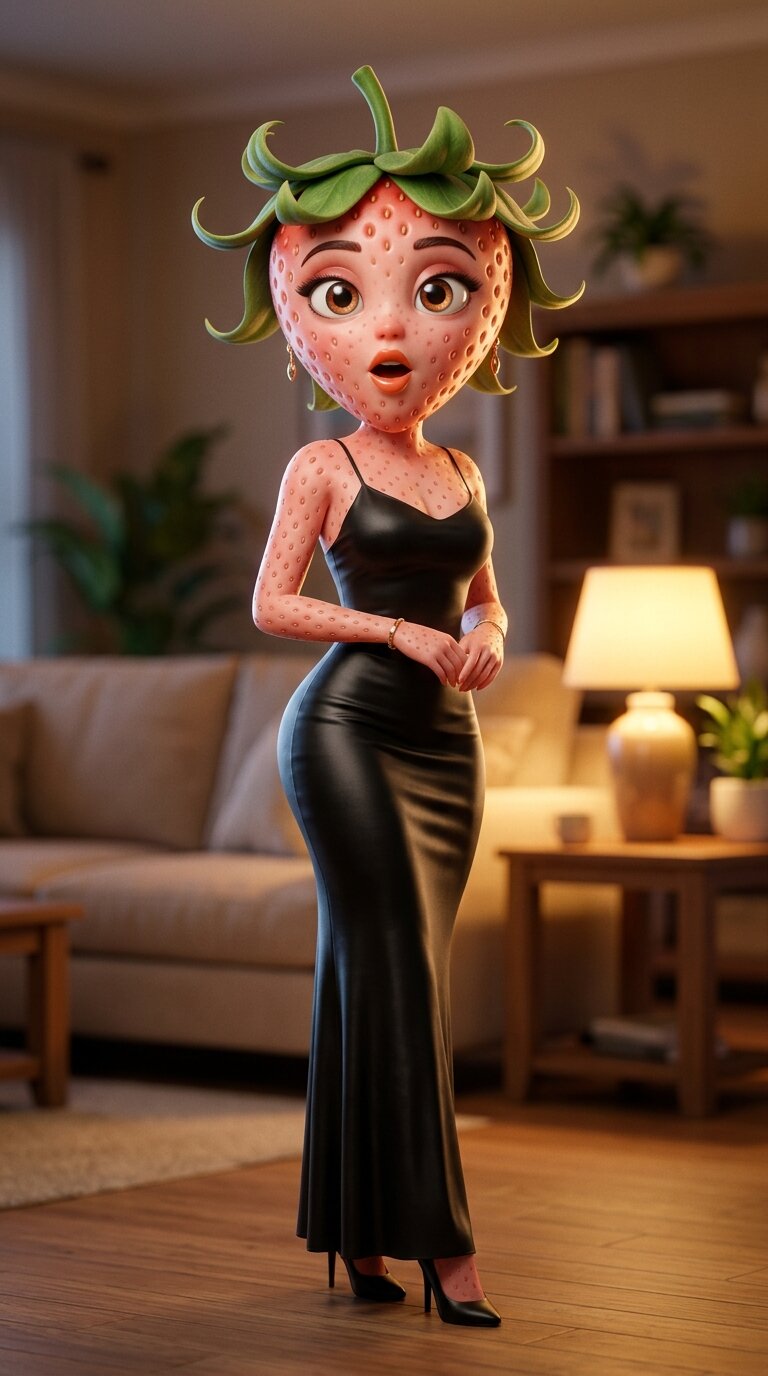
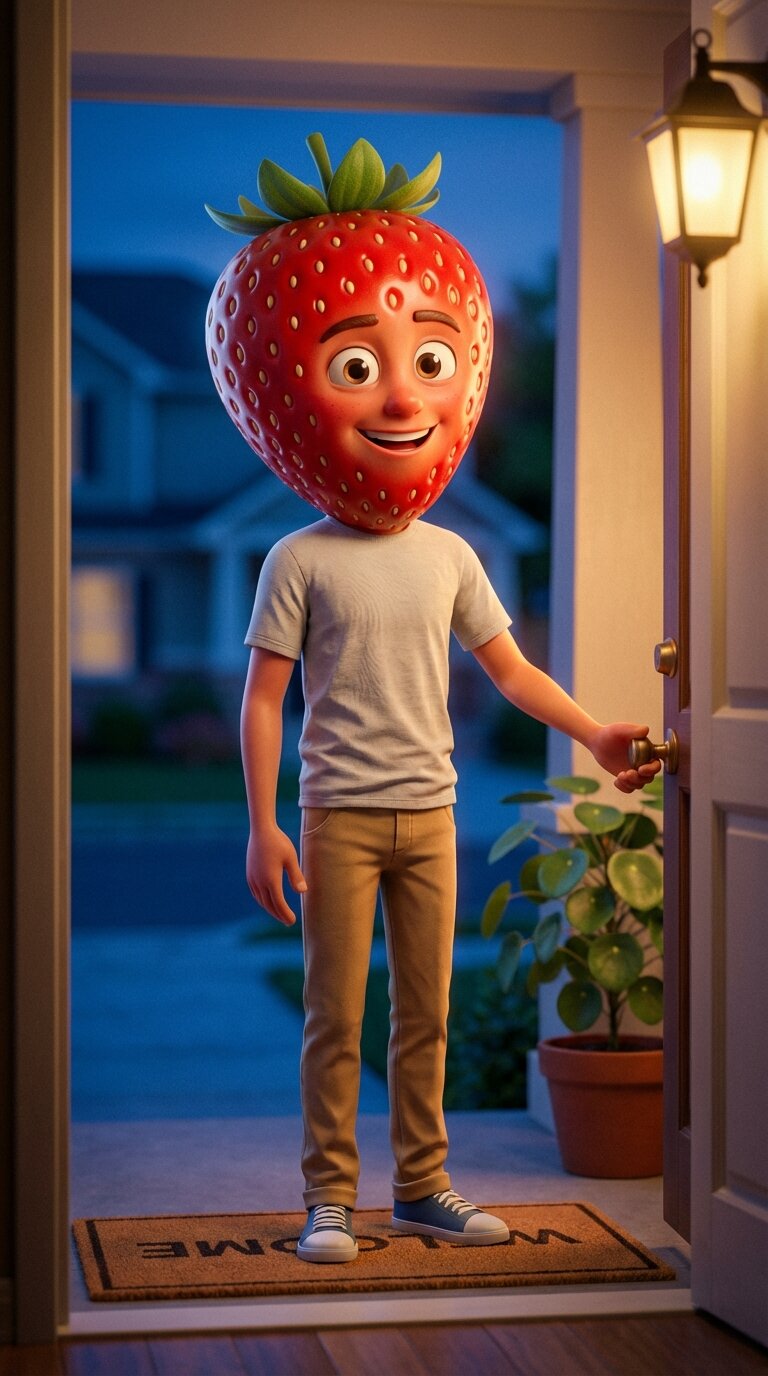
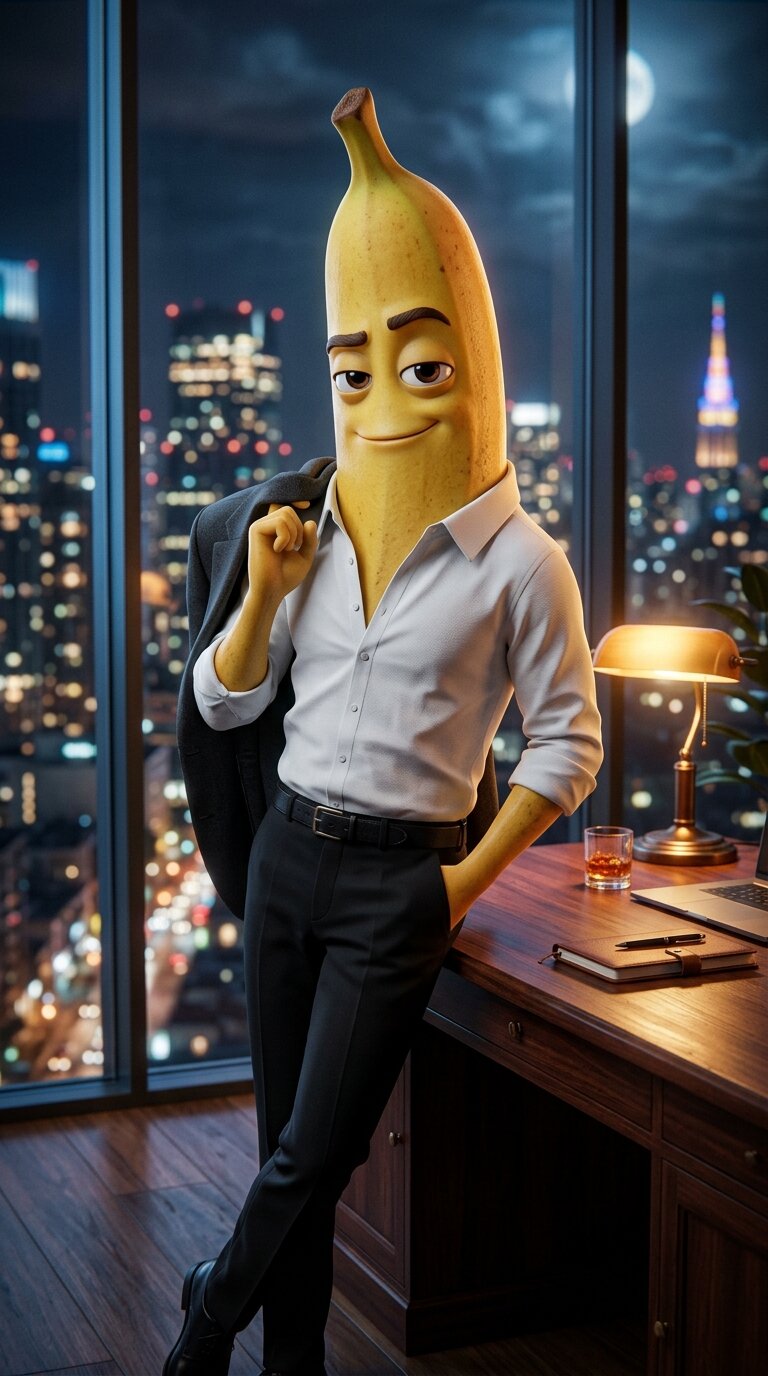
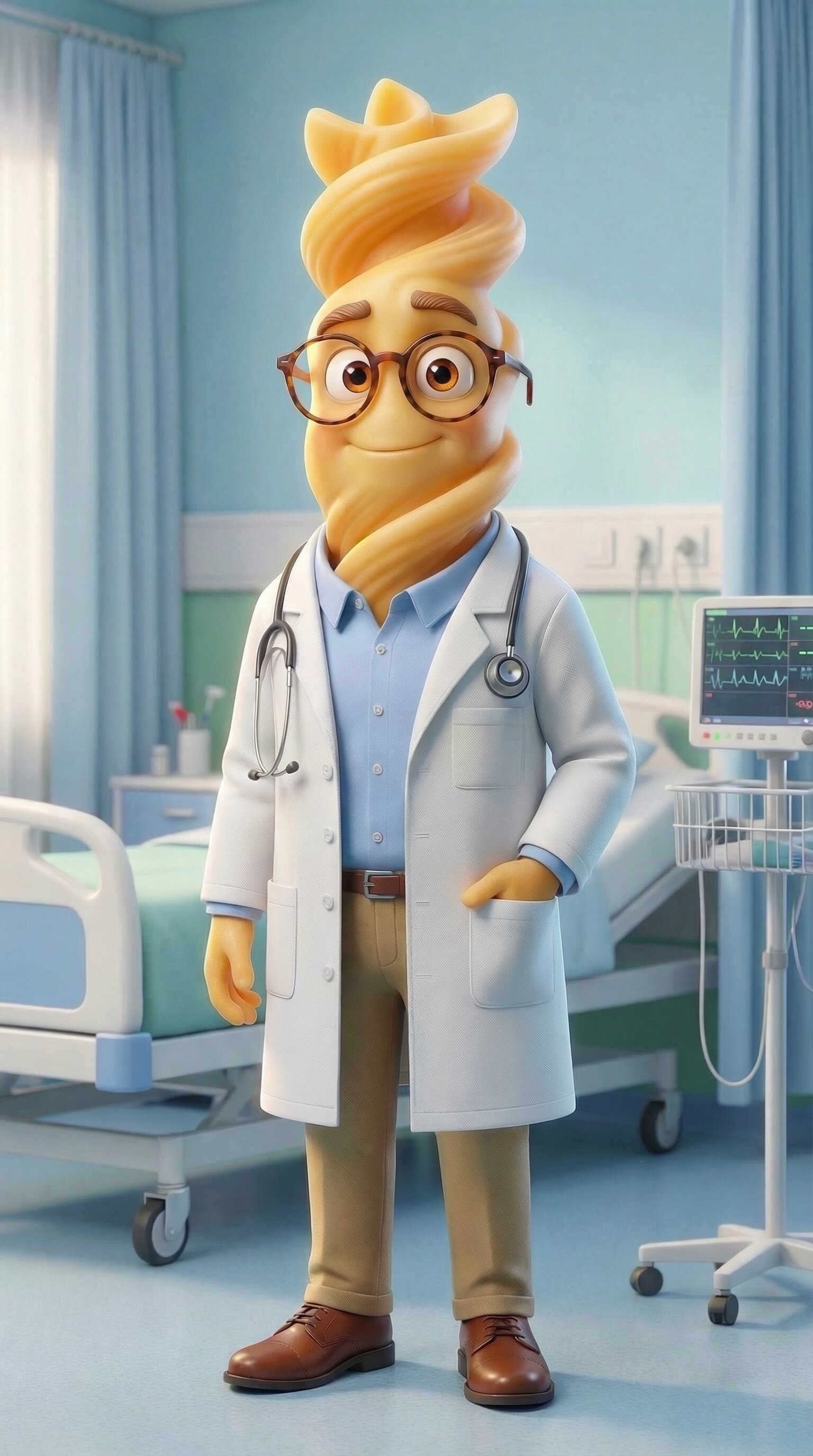
Soft, warm, trusting - the emotional anchor of the story. The audience roots for them.
Smooth, charming on the surface. Their dual nature makes the reveal more dramatic.
Rich, seductive energy. Visually distinct from the main couple so they stand out immediately.
Reliable, grounded. Often the one who reveals the truth or comforts the betrayed partner.
Character Setup · Step 1
Design Your Fruit Characters
Build each fruit character in AI Image, create a character reference sheet for consistency, and save them all to your character assets library. A locked cast is the foundation of a consistent fruit story.
Generate each fruit character in AI Image
Open AI Image and generate each fruit character separately. Describe the fruit type, face details, outfit, and emotional energy. Keep the prompt consistent for every character you'll reuse.
Anthropomorphic [YOUR FRUIT] character, hyper-detailed cinematic 3D render, [YOUR FRUIT] head with realistic texture (subsurface scattering, gloss, natural surface detail), [DISTINCT FEATURE  -  leaves/stem/peel], expressive cartoon-human eyes, [FACIAL EXPRESSION].

  Stylized human body with [BODY TYPE], wearing [OUTFIT  -  specific clothing + material] with realistic fabric folds and texture.

  [POSE / ACTION], [SHOT TYPE], [CAMERA ANGLE], shallow depth of field, soft bokeh.

  Cinematic lighting: warm key light ([SOURCE]), cool fill light, rim/back light, soft shadows, realistic reflections.

  Environment: [SCENE] with [PROPS / DETAILS], softly blurred background.

  High-end 3D rendering, polished materials, ambient occlusion, film grain, cinematic color grading.

  Mood: [MOOD], color palette: [FRUIT COLORS] + [CONTRAST COLORS].
Clone a character style with Clone Prompt
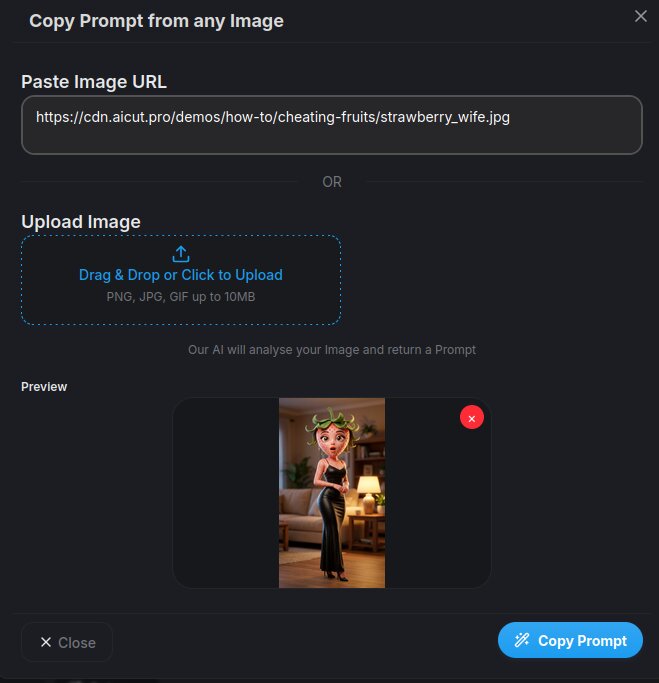
Found a character style you love in a viral video? Open AI Image and use the Clone Prompt feature. Upload a clear screenshot and aicut analyzes the image and generates a detailed prompt capturing the fruit type, outfit, pose, lighting, and 3D render style. Adjust the fruit type, name, and wardrobe to make it your own, then generate it with Nano Banana Pro.
Clone a Character from a ScreenshotGenerate multi-angle reference sheets for each character
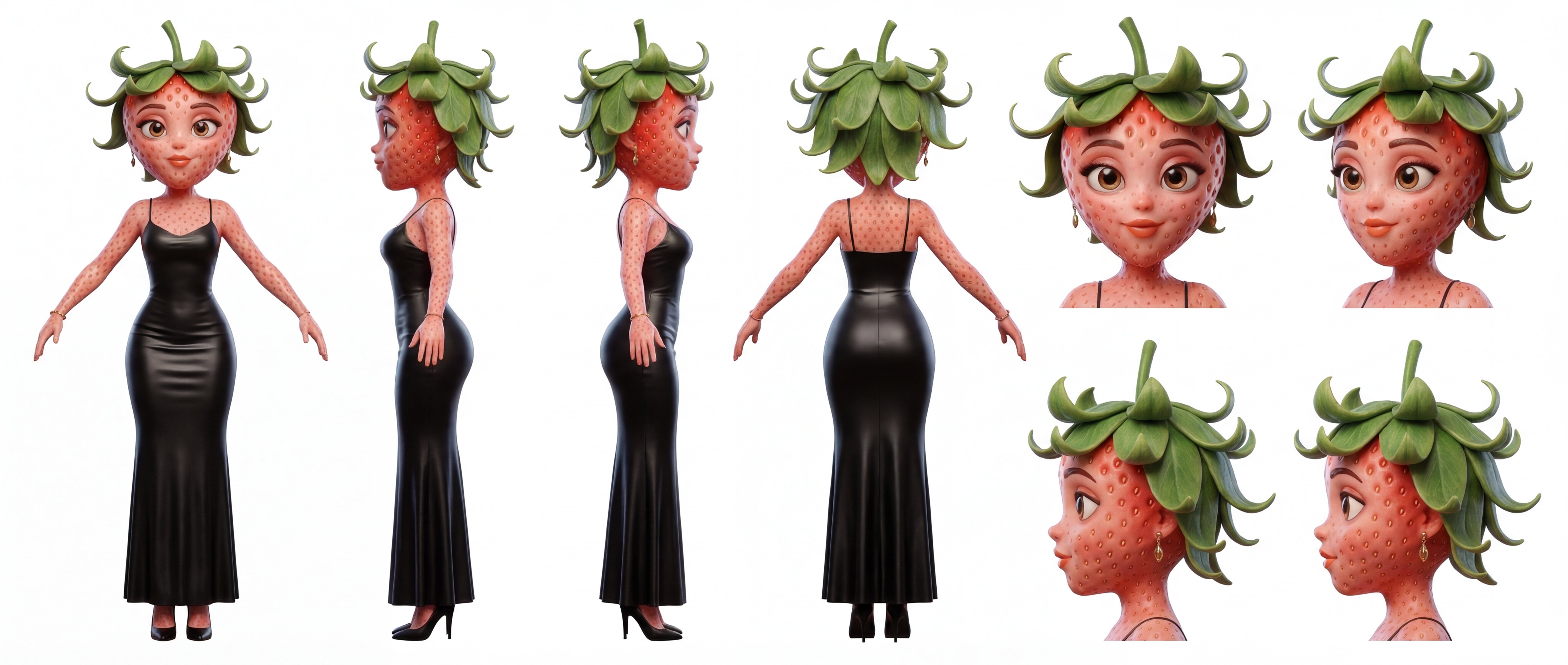
Use the character reference sheet template to generate multiple angles, expressions, and poses for each fruit character. This gives AICUT more visual reference for consistent scene generation.
Create Character Reference SheetsSave all characters to your assets library
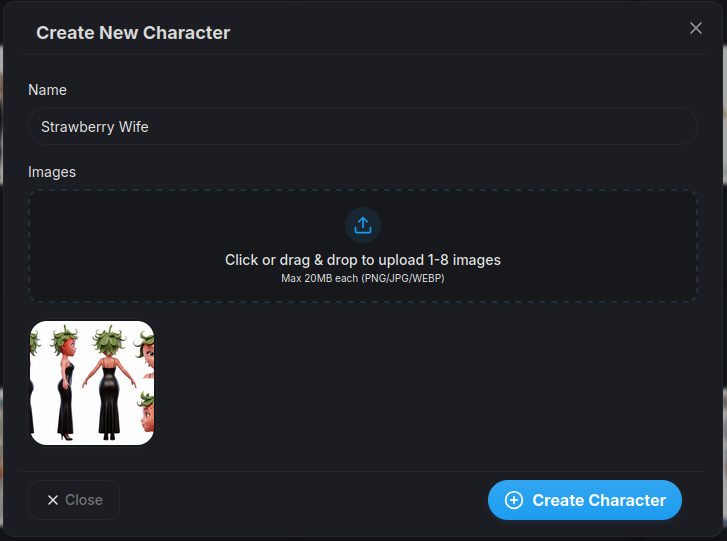
Upload each character to the Characters assets library. You'll select them by name when building the story.
Save to Character AssetsTip: Pick fruit types that match each character's energy - the betrayed wife, the cheating husband, the boss. A lemon husband and a peach wife feel very different and that contrast adds drama. Lock their wardrobe in the first image and never change it.
Story Creation · Step 2
Generate the Fruit AI Drama Story
Choose your approach: clone a viral fruit drama video scene by scene using the Clone Prompt feature, or build a fresh story from scratch with your own structured prompt.
Find a viral fruit drama video on TikTok or YouTube Shorts.
Clone scene prompts from viral videos
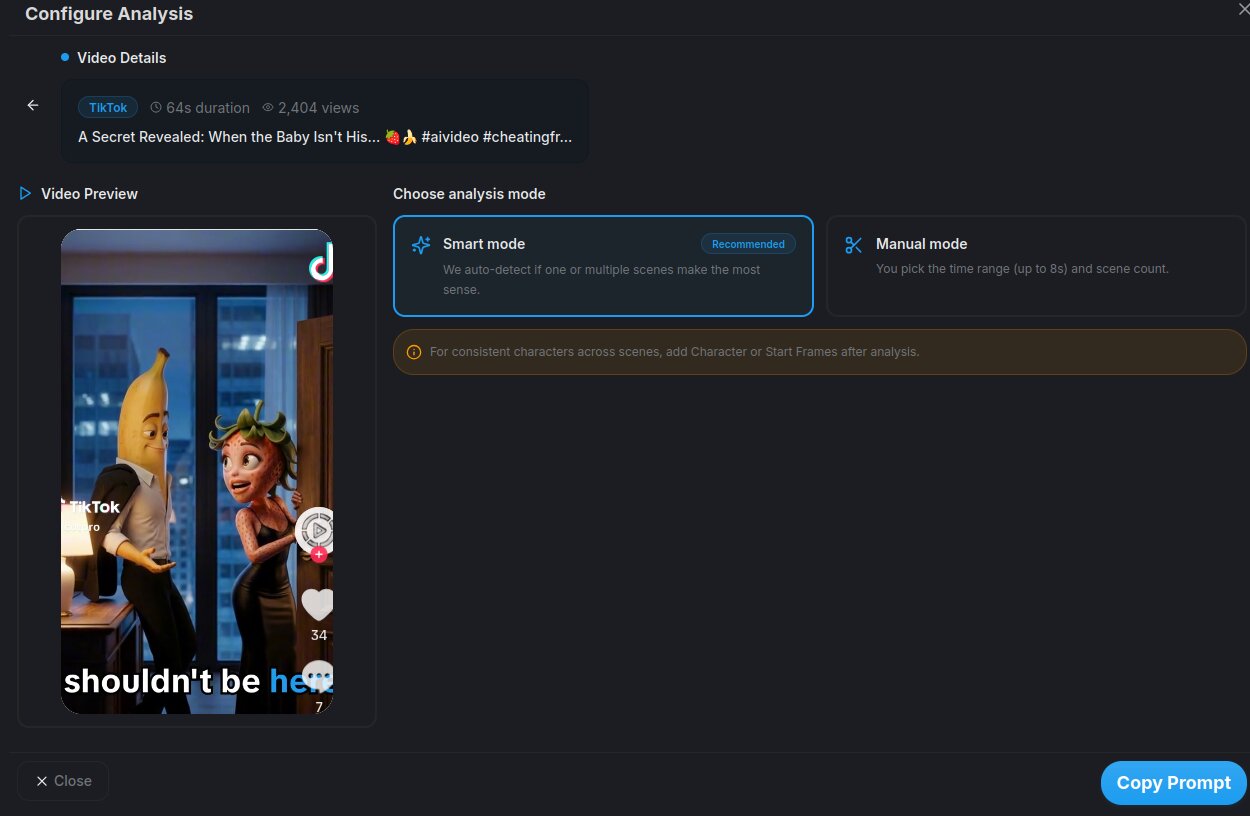
Open AI Video creation and select the Clone Prompt feature. Enter a Tiktok Video URL and let aicut analyze it to get the video scene prompts.
Open AI VIdeo creationWrite your own cheating drama from scratch. Use the template below to fill in your cast, locations, and scene , then paste it into AI Video Multishot Creation.
Fill in the story prompt template
Fill in the story prompt template with your fruit cast, locations, and scene details.
Premium cinematic 3D anthropomorphic fruit drama. Vertical 9:16. Ultra Realism style. No text, watermarks, or subtitles.

CAST
- [FRUIT TYPE] as [Name]  -  [Role, e.g. the betrayed wife]. Wears [outfit]. [Personality  -  e.g. warm, emotional, trusting].
- [FRUIT TYPE] as [Name]  -  [Role, e.g. the cheating husband]. Wears [outfit]. [Personality  -  e.g. calm, distant, two-faced].
- [FRUIT TYPE] as [Name]  -  [Role, e.g. the third party]. Wears [outfit]. [Personality  -  e.g. confident, glamorous, bold].

LOCATIONS: [Primary location  -  e.g. modern apartment], [Secondary location  -  e.g. upscale office or restaurant].

STORY
Scene 1  -  Opening: [The couple in a calm everyday moment. Establish location, mood, and characters.]
Scene 2  -  Suspicion: [Something feels off  -  a late message, a distant look, a suspicious call.]
Scene 3  -  Discovery: [The betrayed partner finds the truth. Close-up on their face and the reveal.]
Scene 4  -  Confrontation: [Face-to-face moment. Anger, tears, or cold silence. Maximum drama.]
Scene 5  -  Payoff: [Final emotional beat  -  walking out, breaking down, or a twist that changes everything.]

Consistent wardrobe and proportions for every character across all scenes. Cinematic lighting, shallow depth of field, film grain, color grading.
Tip: Structure your story like a short drama: calm opening, suspicious moment, confrontation, and a final reaction or payoff. Each beat works best as its own scene so the pacing stays tight when you convert to video.
Scene Frames · Step 3
Generate a Start Frame for Every Scene
Before animating, you need a strong, consistent start frame for each scene. Create Start Frames for every scene with your per-scene prompt and select all the characters that should appear from the character selection modal. This gives the AI the visual references it needs to render every character accurately and consistently in the same frame.
Generate the scene start frame
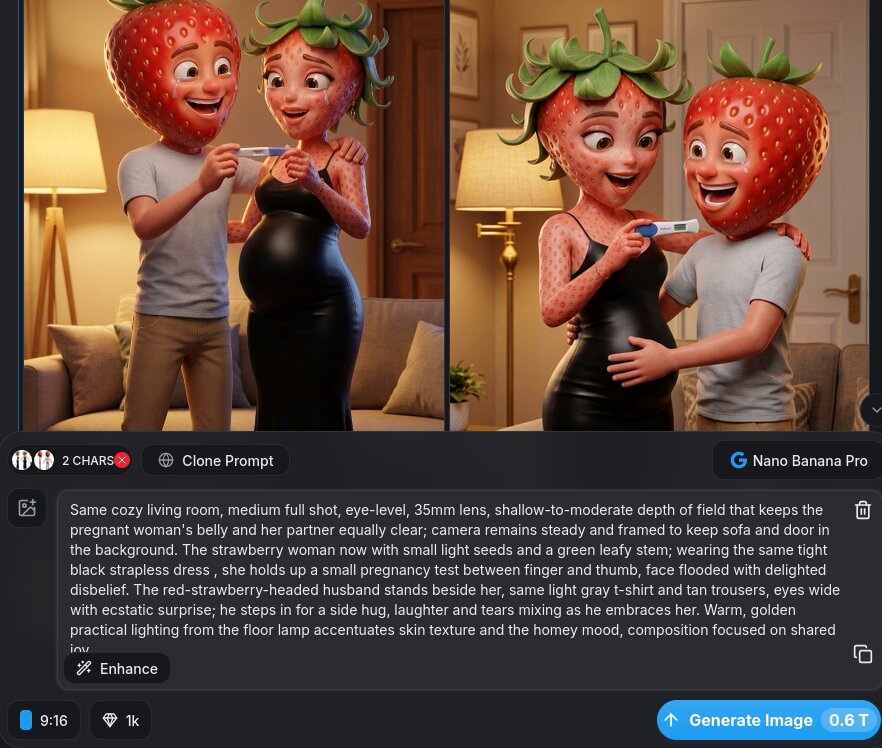
Open AI Image and select all the characters that appear in the scene from the character selection modal. For a two-character confrontation scene, select both characters. Then use the Scene Prompt as your image prompt.
Anthropomorphic [FRUIT TYPE] character, hyper-detailed cinematic 3D render. [FRUIT] head with realistic texture (subsurface scattering, gloss, natural surface detail). Expressive cartoon-human eyes, [FACIAL EXPRESSION  -  e.g. shocked, crying, furious, cold].

Stylized human body, wearing [EXACT OUTFIT from character reference  -  describe precisely]. [POSE / ACTION  -  e.g. standing in doorway, holding phone, turning away].

[SHOT TYPE  -  e.g. medium shot, close-up, wide establishing shot], [CAMERA ANGLE  -  e.g. eye level, low angle], shallow depth of field, soft bokeh.

Environment: [SCENE LOCATION  -  e.g. modern apartment living room] with [SPECIFIC PROPS / DETAILS], softly blurred background.

Cinematic lighting: warm key light, cool fill, rim light, soft shadows, realistic reflections. High-end 3D rendering, polished materials, ambient occlusion, film grain, cinematic color grading.

Mood: [EMOTIONAL TONE  -  e.g. tense, devastated, furious]. Color palette: [FRUIT COLORS] + [SCENE ACCENT COLORS].

No text, no watermarks.
Tip: Always select every character that appears in a scene, not just the main one. If a scene has two or three characters, select all of them in the character modal to keep their look, proportions, and style consistent across every frame.
Video Generation · Step 4
Animate Each Scene with AI Video
Take the start frame from each scene and convert it into an animated video clip using AI Video. Use Grok Imagine as a cost-efficient model — it generates solid motion at a low token cost, ideal for producing 5–8 clips per story.
Create Scene Videos from Start Frames + Scene Prompts
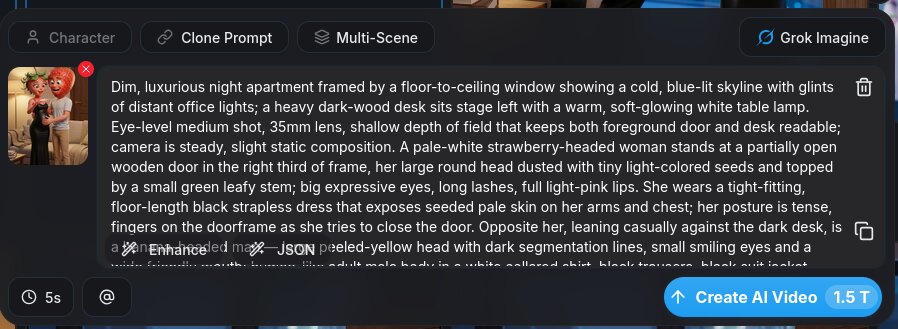
Open AI Video and upload the scene start frame you generated in Step 3. Select Grok Imagine (or your preferred AI Video model). Use the Scene Prompt as your video prompt, and set the duration to 3–8 seconds. Then repeat for each scene.
Open AI VideoAdd Captions, Watermark, and Final Edits
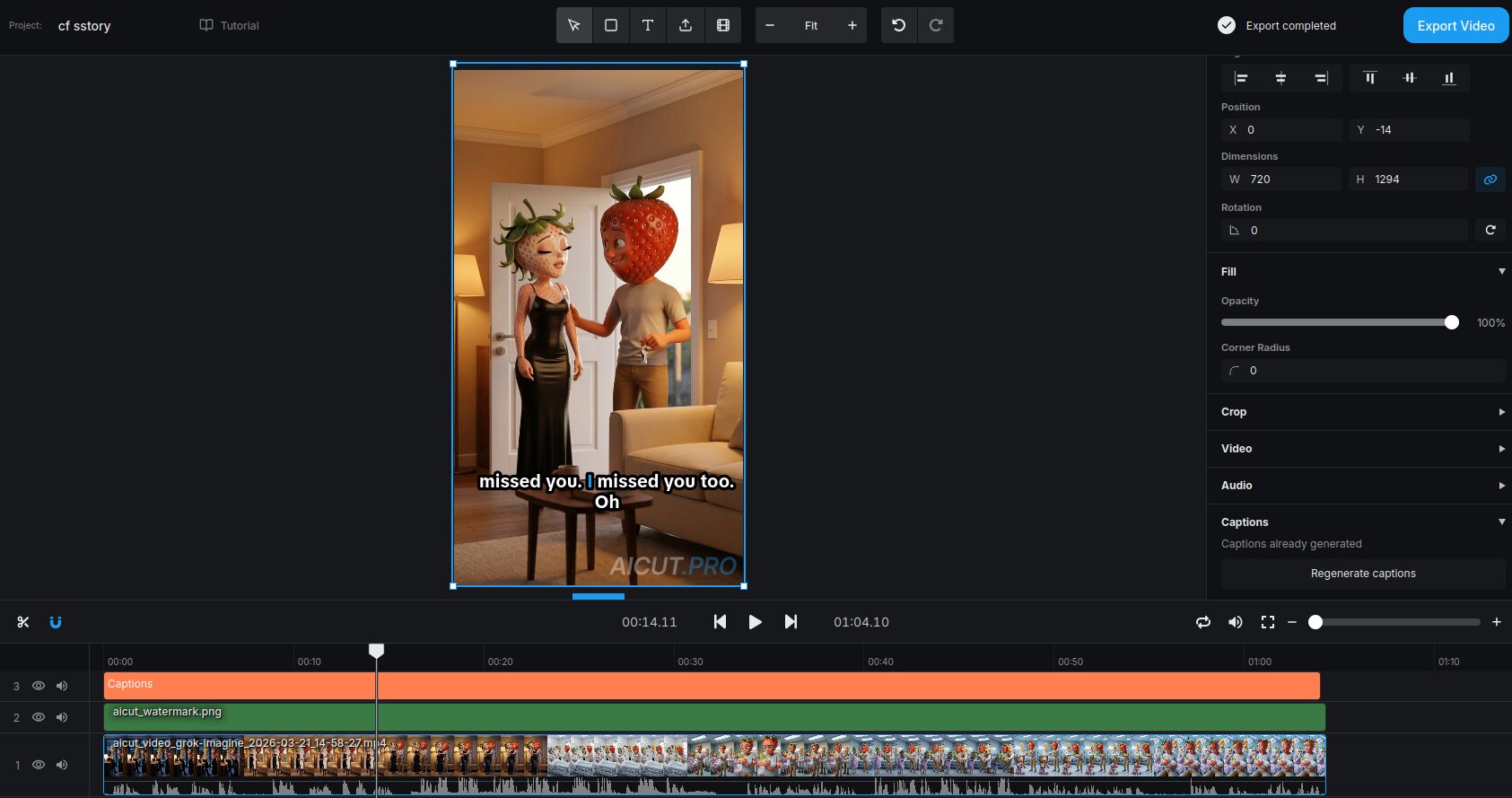
Once all your scene clips are ready, open the Video Editor to assemble them, trim timing, add captions for the drama dialogue, and stamp your watermark before exporting.
Open Video EditorTip: Keep clips short — 4–6 seconds each. The motion should amplify the emotion in the frame, not distract from it. Fast cuts on the confrontation and reaction scenes create the most drama.
Result
Your Cheating Fruit AI Video
A cinematic fruit drama short with a consistent cast, emotional story beats, and animated scenes - ready to post.